 Instagram Story Viewer
How to Create an Instagram Story Collage
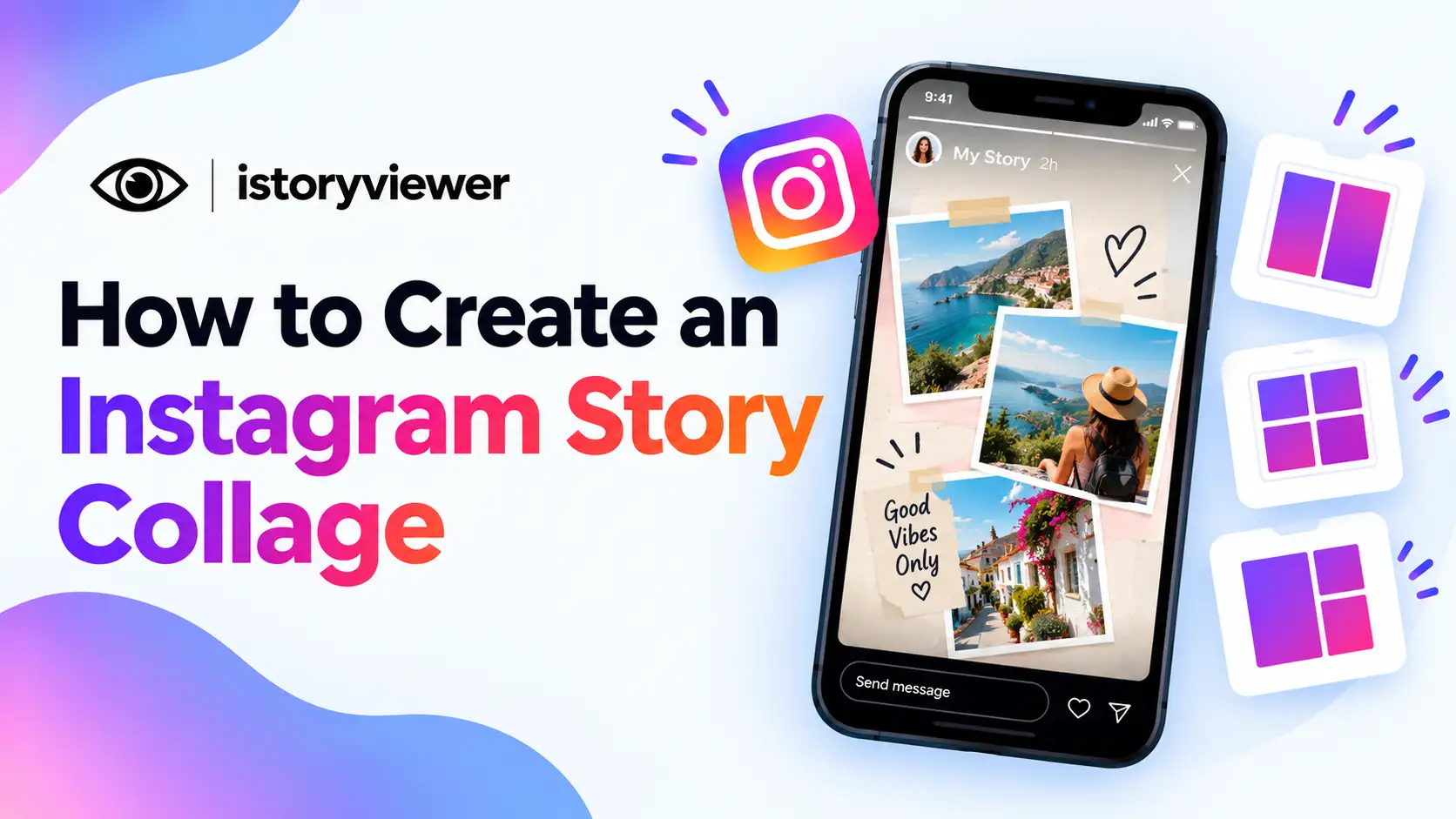
One photo rarely tells the whole story of a trip, an event, or a new product. A collage lets you fit several moments into a single story frame. Instagram gives you built-in tools to do it without extra apps.
Below, you’ll learn how to create an Instagram story collage two different ways. You’ll also get layout tips, a quick comparison, and fixes for missing tools. Pick the method that fits the look you want.
What Is an Instagram Story Collage?
A story collage combines several photos into one story frame. Instead of posting five slides, you share one image that shows everything at once. It works well for recaps, product sets, and before-and-after shots.
Instagram used to offer collages through a separate app called Layout. Instagram’s announcement notes that it discontinued the standalone app on May 29, 2024. Its features moved into the main Instagram app for story creation.
Stories reach a huge audience across Meta’s apps. Meta reported 3.58 billion daily active people across its apps in December 2025. A clean collage helps your story stand out in that crowd.
How to Create an Instagram Story Collage With Layout
Layout is the fastest way to build a neat grid collage. Here’s how to use it in the Instagram app:
Open Instagram and swipe right to open the story camera.
Find Layout among the camera modes on the side or bottom.
Tap the grid option to choose your layout.
Tap the gallery icon to add photos, or take new ones.
Fill each section of the grid, then tap the checkmark.
Add text, stickers, or music, then share your story.
Each grid section holds one photo. If you don’t like a shot, delete it and add another before finishing. The result is a tidy, even collage that works well for side-by-side comparisons.
How to Make a Story Collage With Photo Stickers
Photo stickers give you more freedom than a fixed grid. You can place, resize, and overlap images anywhere on the screen. Here’s how to do it:
Open the story camera and pick a background photo or color.
Tap the sticker icon at the top of the screen.
Choose the photo sticker to open your camera roll.
Select a picture to drop it onto your story.
Pinch, drag, and rotate it into place.
Repeat the sticker steps for each extra photo.
Instagram’s camera roll update explains that you can rotate, resize, or remove stickers before sharing. That flexibility makes photo stickers ideal for scrapbook-style collages.
Layout or Photo Stickers for Your Story Collage
Both methods work well, but they suit different goals. Here’s how to decide between them:
Choose Layout for Speed
Layout is best when you want a quick, balanced grid. Every photo gets an equal share of the frame. It’s great for event recaps and simple comparisons. The trade-off is less freedom over size and placement. You can still add text and stickers afterward.
Choose Photo Stickers for Style
Photo stickers suit collages that need a hero image or overlapping layers. You decide exactly where each picture sits and how big it looks. The process takes a little longer, but the result feels more personal. It also works over a video background.
Tips for a Clean Instagram Story Collage
A collage can quickly look crowded, so a little planning helps. Keep these tips in mind:
Use two to four photos instead of many tiny ones.
Pick one main image and let the others support it.
Leave space between photos so each one is easy to see.
Stick to one background color and one font.
Keep text short and away from the screen edges.
Preview the story once before posting to catch cramped spots. A quick check saves you from reposting later. You can keep a great collage on your profile, since highlights stay visible after 24 hours.
Use Your Own Reels in a Story Collage
Video can make a collage feel more alive. One option is to use one of your own reels as the story background. Then layer a few photos on top with photo stickers.
If the reel lives only on your profile, our free Reels Downloader can grab a clean copy with audio. That saves you from hunting through old phone folders for the original file.
Stick to reels you made or have permission to use. Borrowing someone else’s clip without asking isn’t fair to the creator. Credit any collaborator who appears in the footage. Your collage will feel more authentic with your own content anyway.
Frequently Asked Questions
How many photos can you put in an Instagram story collage?
Layout offers several grid options with a set number of spaces. Photo stickers let you add more, as long as the story stays readable. Most collages look best with two to four photos. Too many images make each one hard to see.
Why can’t I find Layout on my Instagram story?
Start by updating the Instagram app to the latest version. Then check the camera modes in the story camera again. Some features roll out to accounts at different times. If Layout still won’t appear, use photo stickers instead. They create a similar collage with more freedom.
Can I make a collage with videos on Instagram stories?
Yes, you can use a video as your story background. Then add photos on top using photo stickers. This mixes motion with still images in one frame. Keep it simple so the video doesn’t compete with the photos. One short clip usually works best.
Can I share a story collage with only some followers?
Yes, you can share any story with your Close Friends list. Only people on that list will see it. This works well for personal collages from trips or gatherings. Your regular followers won’t see that story at all.
Why does my story collage look blurry?
Low-resolution photos or heavy cropping often cause blurry collages. Use the clearest originals from your camera roll. Avoid zooming in too far on a small image. Previewing before you share helps you spot quality issues early. Good lighting in the original photos helps too.